

Quick answer: First work out whether you have an FPS problem or a ping problem. For low FPS, turn on Low Spec Mode and Close Client During Game, use Fullscreen, lower Effects and Shadows, update your graphics driver, close background apps and run Repair from the Riot Client. For lag and high ping, use Ethernet, restart your router, close bandwidth-heavy apps and renew your IP. Reinstall only if Repair fails.
League of Legends runs on modest PCs, so sudden FPS drops usually come from software, drivers, background apps or heat, and lag is usually your connection rather than your PC. This guide follows Riot Support's troubleshooting articles on low FPS, high CPU usage, connection problems and full screen optimization, and adds settings advice from NoPing and repair steps described by LoL Theory, last reviewed October 2026. Riot's pages do not name individual in-game settings, so those values are third-party suggestions, not Riot rules. Before changing anything, compare your PC with the League system requirements.
FPS drops or ping spikes: how to tell
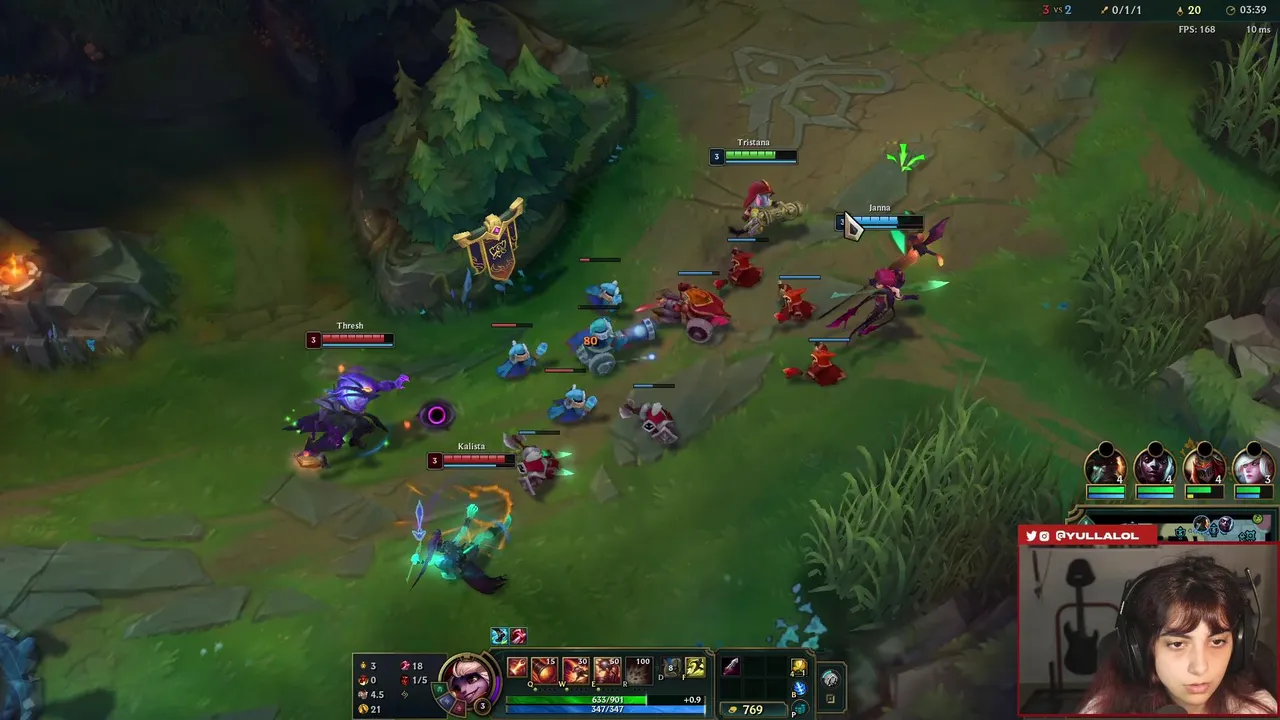
The two problems feel similar but have different causes and different fixes. Turn on the in-game FPS and ping readout: in a match open the settings menu, go to Hotkeys, then Display, and find the key bound to Toggle FPS Display. The readout appears in the top-right corner.
| What you see | Likely cause | Go to |
|---|---|---|
| FPS number falls (for example far below your monitor refresh rate), ping stays steady | PC load, settings, drivers, heat | Settings, drivers, background apps |
| Ping jumps while FPS stays steady, champions teleport or rubber-band | Network, Wi-Fi, ISP routing | Network fixes |
| FPS drops only in team fights | Effects load | In-game graphics settings |
| Both bad at the same moment | Something hogging the PC and the network, such as a download | Background apps |
| Stutter right after launch or after a patch | Damaged files, client load | Repair |
As a rough ping guide, NoPing treats under 30 ms as ideal, 30 to 60 ms as fine for most players, 60 to 100 ms as noticeable but bearable and above 100 ms as clearly worse. These are one guide's bands, not an official Riot rating.



In-game graphics settings for more FPS
Open Settings, then Video. Riot's advice is to lower graphics settings gradually until you find a balance between performance and visuals, and to go as low as needed if the PC still struggles. The exact values below are our suggestions, and the aim is a stable frame rate, not the highest possible number. A steady 60 on a 60 Hz screen feels better than 144 that dips to 40.
| Setting | Suggested value |
|---|---|
| Window mode | Fullscreen |
| Resolution | Native, or lower if needed |
| Character quality | Medium or Low |
| Environment and effects quality | Low |
| Shadows | Off |
| Anti-aliasing | Off |
| Frame rate cap | Match your monitor (60 for a 60 Hz screen) |
| Vertical sync | Off, unless you see tearing |
Third-party guides report that Fullscreen usually performs better than Windowed or Borderless (Riot's pages do not compare the modes), because the game does not share the screen with the desktop compositor. Capping the frame rate also lowers heat and keeps frame times steadier, which matters on laptops.
Client settings and shortcut options
- In the League client open Settings, General, and enable Low Spec Mode and Close Client During Game. Both reduce what the client uses while you play (a common third-party tip, not on Riot's FPS page).
- Riot explains that Full Screen Optimization, a Windows 10 feature that is on by default, can sometimes hurt game performance. For League only, right-click the League shortcut, open Properties, then Compatibility, and check Disable Full Screen Optimizations. Riot also says to do the same for League of Legends.exe in the game folder (its example is C:\Riot Games\League of Legends\Game) and to reapply it after every patch. Alternatively turn it off system-wide in Windows Settings, Gaming, by clearing the Game bar option for full-screen games. It helps some PCs, so undo it if nothing changes.
- Restart the client after changing options, and avoid queueing with the client minimized behind other heavy windows.
Windows, drivers and background apps
- Graphics driver: Riot lists updating your graphics card drivers as a core step, since outdated drivers can cause crashes, freezes, black screens and visual glitches. Update from NVIDIA, AMD or Intel directly. If problems started right after a driver update, roll back to the previous one in Device Manager (our tip).
- Windows updates: Riot also recommends updating Windows to the latest version. Install pending updates and restart.
- Power plan: Riot's high CPU usage article says to choose Balanced or High Performance in Power Options. On a laptop, plug in the charger first.
- Game Mode: Riot suggests turning it on: press Windows + I, open Gaming, then Game Mode, and switch it on.
- Clean boot: Riot recommends a clean boot so background programs do not compete with the game for resources.
- Visual C++ and DirectX: reinstall the redistributables if the game crashes or stutters after a clean Windows install.
- Background apps: open Task Manager and check CPU, disk and network use. Close browsers with many tabs, launchers, overlays, downloads and recording tools. For high CPU usage, Riot also suggests a Windows Security quick scan for malware, and running sfc /scannow in an administrator Command Prompt, then restarting, to check system files.
- Storage: keep League on an SSD with free space.
Heat and hardware
Riot's high CPU usage article lists overheating as a cause: check that fans work, clear dust from vents and fans, avoid hot or poorly ventilated spots, and monitor temperatures with a tool such as HWMonitor or MSI Afterburner. If your CPU or graphics card sits above about 85 to 90 degrees Celsius it may throttle, which looks like random FPS drops after 10 to 20 minutes of play. Clean dust, improve airflow, and use a cooling pad on a laptop. The 85 to 90 degree figure is our rule of thumb, not Riot's; exact throttle points differ by chip, so check your manufacturer's specification. Riot adds that if high usage continues, a better CPU or cooler, more RAM or fresh thermal paste may be needed.
Network fixes for lag and high ping
- Use Ethernet: Riot says wireless links can be affected by distance, interference and other devices, so connect the PC straight to the router or modem and retest.
- Restart modem and router: Riot says to turn both off, wait at least 30 seconds, turn them on, then launch the game and test.
- Find bandwidth hogs: Riot says to pause downloads, streaming and cloud syncing and to disconnect other heavy devices. To spot them, press Win+R, type resmon, open the Network tab and sort by Total (B/sec). Close only programs you recognize.
- Reset TCP/IP: Riot lists this as a step. A common way is, in Command Prompt as administrator, ipconfig /release, ipconfig /renew, then ipconfig /flushdns; Riot has its own Reset your network guide with the exact steps.
- Try public DNS: Riot recommends switching to a public DNS to rule out your current provider. NoPing suggests 8.8.8.8 and 8.8.4.4. DNS mainly speeds lookups, so do not expect a big in-match ping change (our assessment).
- Turn off VPNs and proxies: Riot says they often cause connection problems and must be off while troubleshooting.
- Check your firewall: make sure it is not blocking the Riot Client from reaching Riot's servers.
- Update network drivers (our tip).
- Call your ISP if ping is high only at certain hours or to certain servers. Route optimizers exist, but their benefit varies and we could not verify it independently. If problems persist, Riot asks you to submit a ticket to Player Support with your logs.
Also confirm you are playing on the right region server for where you live. For more matchup and setup help see the League beginner guide.
Repair tool and when to reinstall
If settings and drivers do not help, repair the game files. In the Riot Client click your profile icon, open Settings, choose League of Legends and press Repair. LoL Theory describes this Repair button, and says the scan takes about 5 to 30 minutes depending on your connection, so leave the client open. If Repair is greyed out, close League completely, check Task Manager for leftover League processes and relaunch. Riot's connection troubleshooting article names the Riot Repair Tool (RRT) and says it is used to gather logs when you submit a ticket to Player Support. The pages we read do not describe the RRT as a file repair tool or give a download link, so find it through Riot Support.
Reinstall only as a last resort: uninstall, delete leftover League folders, restart, then install fresh. Do this when Repair finishes but crashes or corruption keep returning. If a clean install on a healthy Windows still drops frames, suspect hardware: test temperatures, RAM and your drive. If nothing works, Riot asks you to submit a ticket, and for high CPU usage to attach a Task Manager Performance screenshot and a DxDiag report.
Not sure your PC is ready? Try the Can my PC run it? calculator and the FPS calculator. Want to see how others set up their game? Watch live League streams.
Quick fix checklist (5 minutes)
- Close the browser, Discord overlay and any recording software.
- Set the client to windowed fullscreen, cap FPS at your monitor refresh rate and turn off Vertical Sync if input feels slow.
- Switch to a wired connection or move closer to the router.
- Update the graphics driver and restart the PC.
- Run the repair tool from the client settings if the problem started after a patch.
Is it my PC or the server?
If ping rises while FPS stays high, the problem is the network, not the PC. If both are normal in practice mode but bad in ranked, the cause is usually your route to the game server or a busy home network. Ask people in the same region whether they have it too, and check the latest news for server notices. League is one of the games on our tournament calendar, and during Worlds the client is busier than usual, so also read the Worlds 2026 guide.
More League help
Not sure your computer meets the official specs? See League system requirements. If you are new, start with the beginner guide. Watch how pros set up their game on live League streams or browse the League streams.
