
League of Legends runs on a wide range of PCs, but the rules changed in recent years: you now need DirectX 11 on Windows, a recent Windows 10 build, and TPM 2.0 on Windows 11. Riot lists minimum and recommended specs on its support site. We checked that page on October 10, 2026. Specs can change, so look at Riot's page if something fails.
Key takeaways
- Windows needs 64-bit Windows 10 (build 19041 or later) or Windows 11.
- Your graphics card must support DirectX 11. If not, the Play button is greyed out.
- Windows 11 needs TPM 2.0 turned on.
- Mac support is listed for Apple M1 chips and newer, with macOS 12.
- Linux, SteamOS and Bazzite are not supported. Neither are ARM processors on Windows.

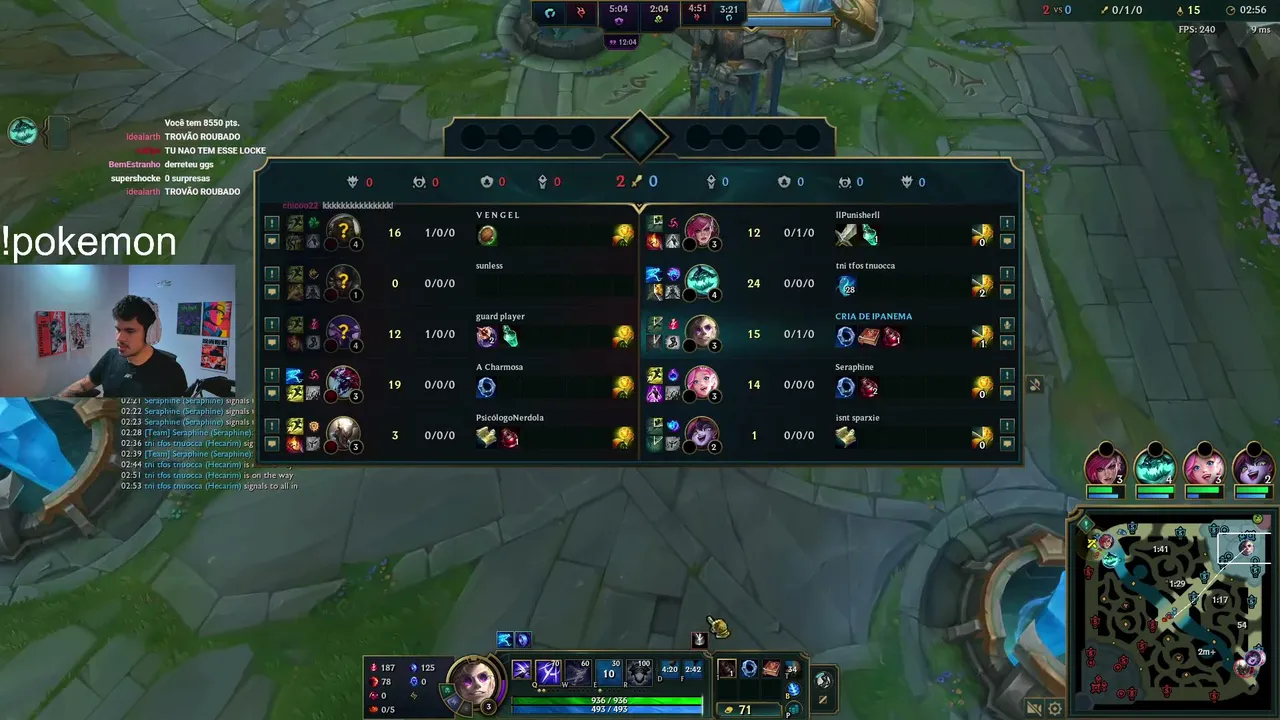
Windows specs
| Minimum | Recommended | |
|---|---|---|
| CPU | Intel Core i3-530 or AMD A6-3650 | Intel Core i5-8250 or AMD Ryzen 3 1200 |
| GPU | GeForce 400 series, Radeon HD 6570 or Intel HD 4600 (DirectX 11) | GeForce 560, Radeon HD 6950 or Intel UHD 630 |
| RAM | 2 GB | 4 GB |
| Video memory | 1 GB | 2 GB |
| Storage | 16 GB (HDD) | 16 GB (SSD) |
| Windows | Windows 10 build 19041+ or Windows 11 | Windows 11 |
| Settings | Low, 1024x768 | High, 1920x1080 |
Riot lists only retail editions of Windows. Enterprise and Server editions are not supported. Windows 11 needs TPM 2.0 enabled. Riot also warns that meeting only the minimum can still give you performance problems, so aim above it if you can.
Mac specs
Riot lists the same hardware for minimum and recommended: an Apple M1 chip, a Metal-capable GPU, 8 GB of unified memory, 40 GB of storage and macOS 12. Only the graphics setting changes (Low or High, both at 1680x1050). Riot's page also says Intel Macs can still run the game, but support focuses on Apple Silicon, and problems that only affect Intel Macs may not be investigated. The page is not fully consistent here, so if you have an Intel Mac, expect that it may work but may not be fixed if it breaks.
What do the numbers mean in real play?
The minimum list targets low settings at a small screen size. That is enough to play, but team fights with many effects can drop your frame rate. The recommended list is closer to a smooth experience at 1080p with high settings. An SSD helps the game load faster and cuts the time spent staring at the loading screen, although the game itself does not need much space (16 GB on Windows, 40 GB on Mac).
Internet matters just as much as hardware. LoL sends small packets often, so stable ping is better than a high download speed. If you can, use a cable instead of Wi-Fi.
How to check your PC in two minutes
- Press the Windows key, type "dxdiag" and press Enter. The first tab shows your CPU, RAM and Windows version. The Display tab shows your graphics card and DirectX feature levels.
- Open Settings, then System, then About, to see the exact Windows build. You need build 19041 or later on Windows 10.
- On Windows 11, press Windows+R, type "tpm.msc" and press Enter. It tells you if a TPM 2.0 chip is ready.
- Compare what you see with the table above. If you pass the recommended column, you can play comfortably at 1080p.
Laptops, handhelds and cloud play
Many gaming laptops are far above the list, but thin office laptops with older Intel graphics sit near the minimum. They can run the game, but expect low settings and dips in big fights. Keep the laptop plugged in and set the power mode to high performance, because battery mode often cuts frame rate by a lot. Handheld PCs that run regular Windows can work, but handhelds that run SteamOS do not, because Riot does not support that system. Cloud gaming services are not covered on Riot's page either, so we cannot promise they will work.
How to install
- Open the official download page and choose the Windows or Mac installer.
- Run the installer and sign in with a Riot Account, or create one.
- Let the game finish downloading and updating, then press Play.
- Open settings and check that the resolution matches your monitor.
Fixing common problems
- Play button greyed out: Since patch 25.21, Riot enforces DirectX 11 on Windows and Metal on Mac. Update your graphics driver, and check support with the DirectX Diagnostic Tool (dxdiag).
- Error VAN 9004: You are on a Windows 10 build older than 19041. Update Windows.
- Low frame rate: Close extra apps, lower shadows and effects, and update your graphics driver.
- Very weak PC: Riot offers a MinConfig fix on its support page that loads the lowest settings. It overwrites your current in-game settings, so use it only if you need it.
Common mistakes
- Buying hardware before checking if Windows 11 and TPM are already fine.
- Installing on Linux or Steam Deck and expecting support. Riot does not support it.
- Downloading the client from a third-party site.
Next steps
Ready to play? Read our beginner guide, watch pros in the Worlds 2026 viewing guide or visit the League of Legends hub to see live streams.
Live now: League of Legends
See all → LIVE
Twitch
5,749
WORLDS - SWISS STAGE DAY 1 - BO1
otplol_fr
LIVE
Twitch
5,749
WORLDS - SWISS STAGE DAY 1 - BO1
otplol_fr
 LIVE
Twitch
5,094
🔴 [24/7] @Caedrel WORLDS RE-RUN: SWISS STAGE - DAY 1 🔴
Caedrel247en
LIVE
Twitch
5,094
🔴 [24/7] @Caedrel WORLDS RE-RUN: SWISS STAGE - DAY 1 🔴
Caedrel247en
 LIVE
Twitch
3,520
AGURIN DOESN'T SHAVE UNTIL NA RANK 1 DAY 30| !steelseries NEW !khazix !course !borders
agurinde
LIVE
Twitch
3,520
AGURIN DOESN'T SHAVE UNTIL NA RANK 1 DAY 30| !steelseries NEW !khazix !course !borders
agurinde
 LIVE
Twitch
3,389
👿 Few Games 🐀🤌🔥Day1👿 🤌🔥, Larry Escaped the Hospital💀 Only Larry Remains. 👿
RATIRLen
LIVE
Twitch
3,389
👿 Few Games 🐀🤌🔥Day1👿 🤌🔥, Larry Escaped the Hospital💀 Only Larry Remains. 👿
RATIRLen
