
You join a Team Fortress 2 community server by opening Play, choosing Find a Game, switching to the Community tab and pressing Connect on a server. You can also click a Steam link on a server list or type a connect command in the console. This guide covers all three ways, explains how community servers differ from Casual and Competitive, and fixes the most common problems. Facts were checked on October 14, 2026.
Key takeaways
- Official Casual and Competitive are Valve matchmaking. Community servers are run by volunteers and let you pick the exact server and game mode.
- Three ways in: the in-game browser, a Steam join link, or the connect command with an IP and port.
- Add servers you like to Favorites so you can find them again.
- If the list is empty or a map is missing, the fix is usually simple and listed below.
- TF2 is rated ESRB M (Mature 17+), and chat on community servers is moderated only by that server's admins.
Casual, Competitive and community servers: what is the difference?
TF2 has two kinds of servers. Official ones are run by Valve and used by matchmaking. Community servers are rented by players and groups, and the owner picks the maps, rules and plugins. Casual mode replaced the old quickplay in the July 7, 2016 update, and its levels never affect matchmaking, according to the official wiki.
| Casual | Competitive | Community server | |
|---|---|---|---|
| Who runs it | Valve | Valve | Players or groups |
| How you join | Queue and wait | Queue, ranked | You choose the server |
| Game modes | Standard maps | 6v6 style matches | Anything: MvM, VSH, Dodgeball, MGE, surf, Jailbreak |
| Rules | Fixed | Fixed | Set by the owner |
| Cost | Free | Free | Free |
Community servers can have custom rules such as no random crits, no respawn time or more than 24 slots, and they show these as tags. Read the server name and tags before you join.
Way 1: the in-game server browser
- Start TF2 and open the Play menu, then Find a Game.
- Choose the Community tab to open the server browser.
- Press Quick refresh. The list stays empty until you refresh, as the wiki notes for the Internet tab.
- Type a word in the map filter, for example vsh, tfdb (Dodgeball), mge, surf or mvm, or use the tags bar to include or exclude tags such as nocrits.
- Sort by players and ping. Pick a server that is not empty and not full.
- Select it and press Connect. A golden lock means it needs a password. If it is full, the Server Info window lets you auto-retry until a slot opens.
Way 2: use the Oggo server list
Our TF2 server list shows community servers with live player counts, so you can see which modes are busy before you start the game. Pick a mode, choose a server with players in it and use its join option. Here are a few live servers:
Steam must be running for a join link to work. If a link does nothing, use way 3 with the address shown under the server.
These screenshots may contain violence.
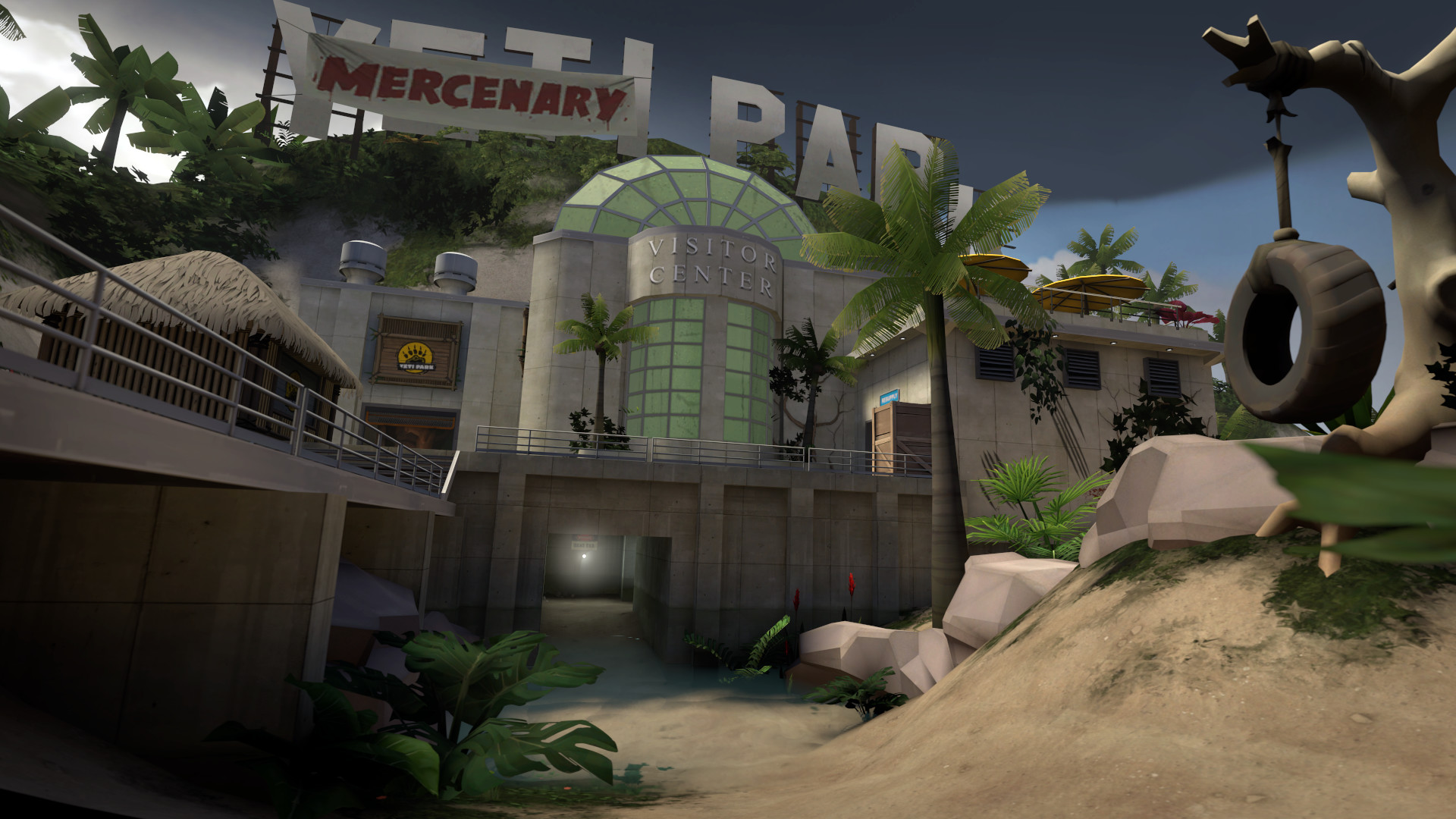
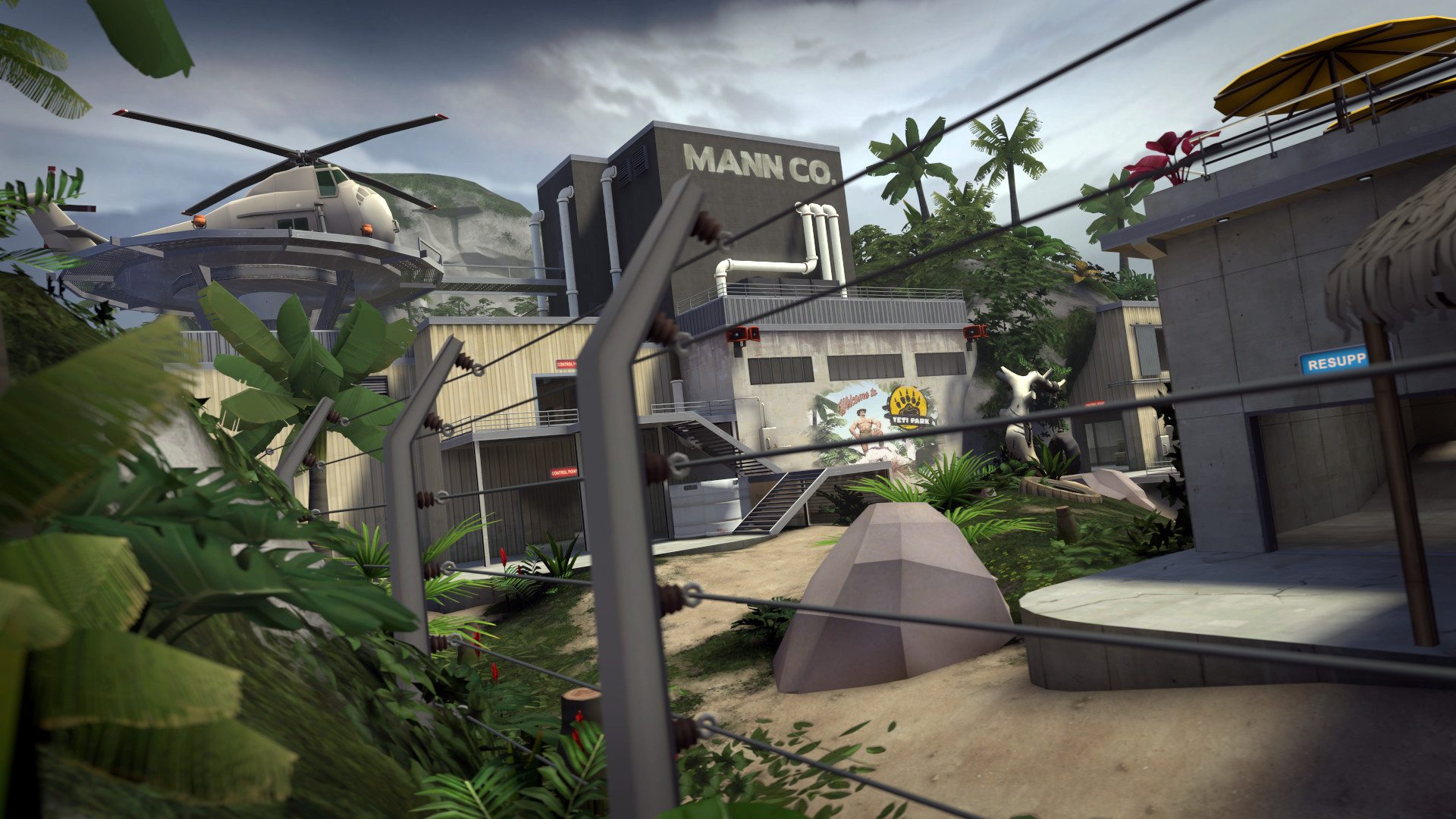
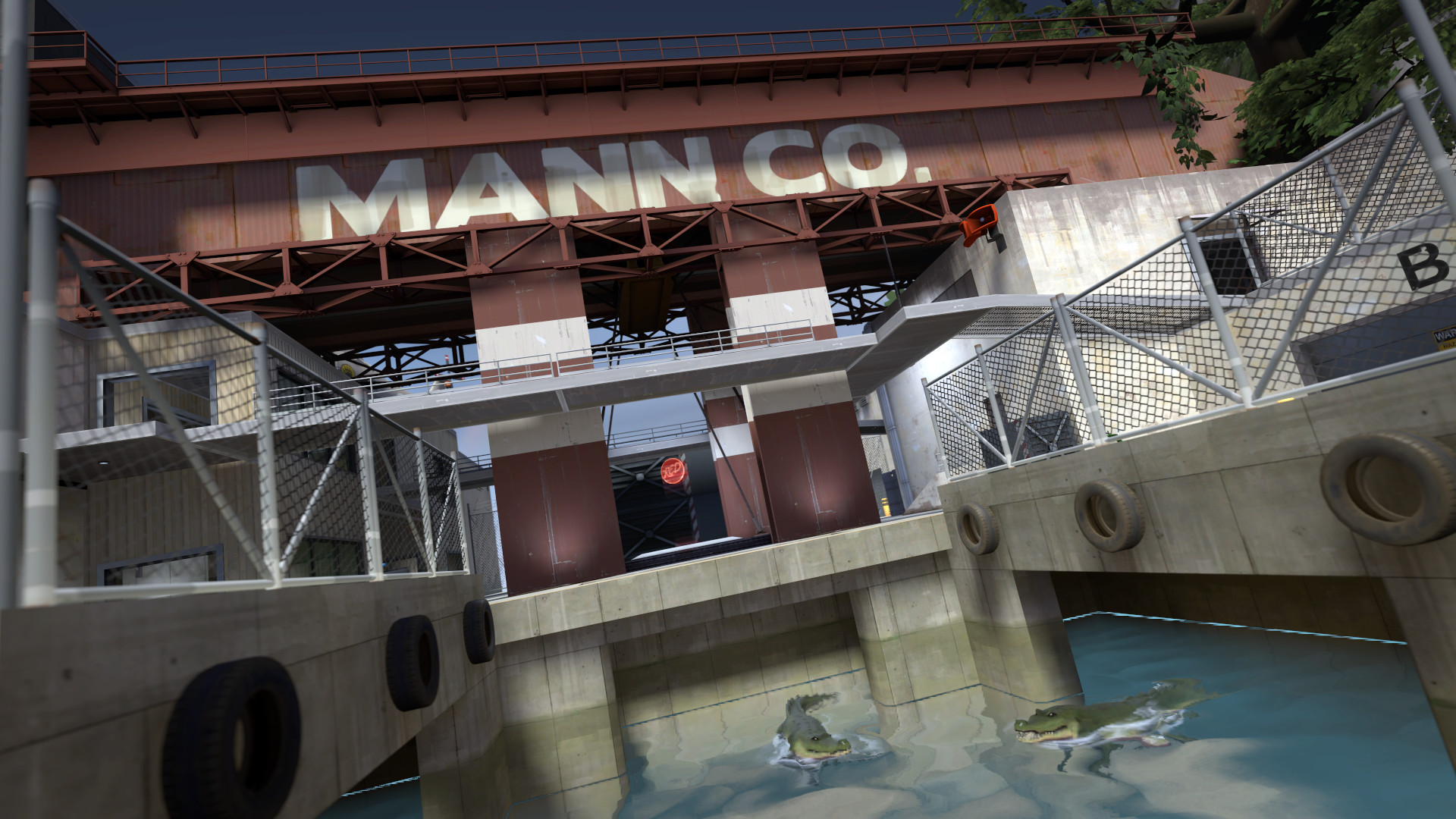
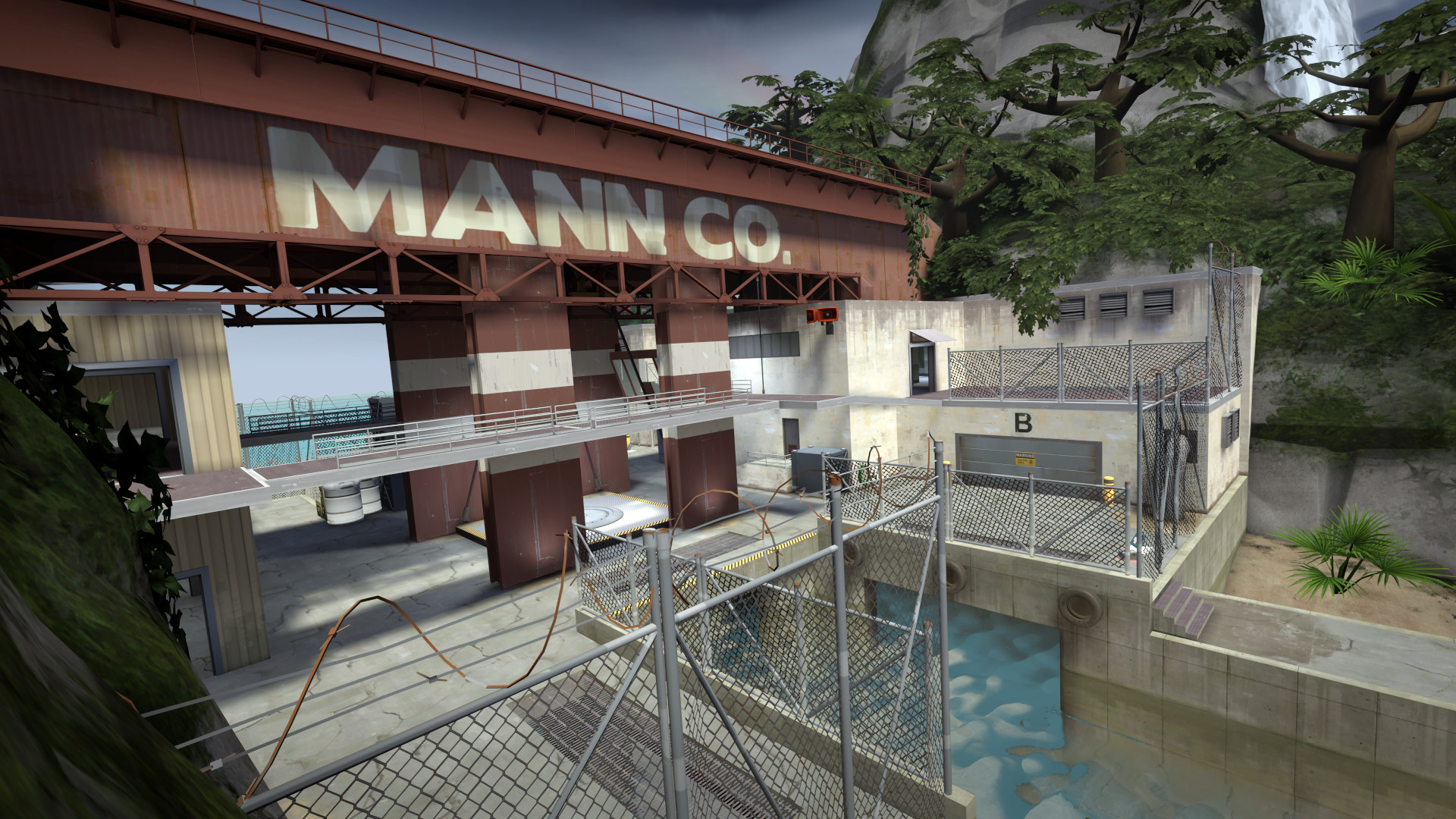
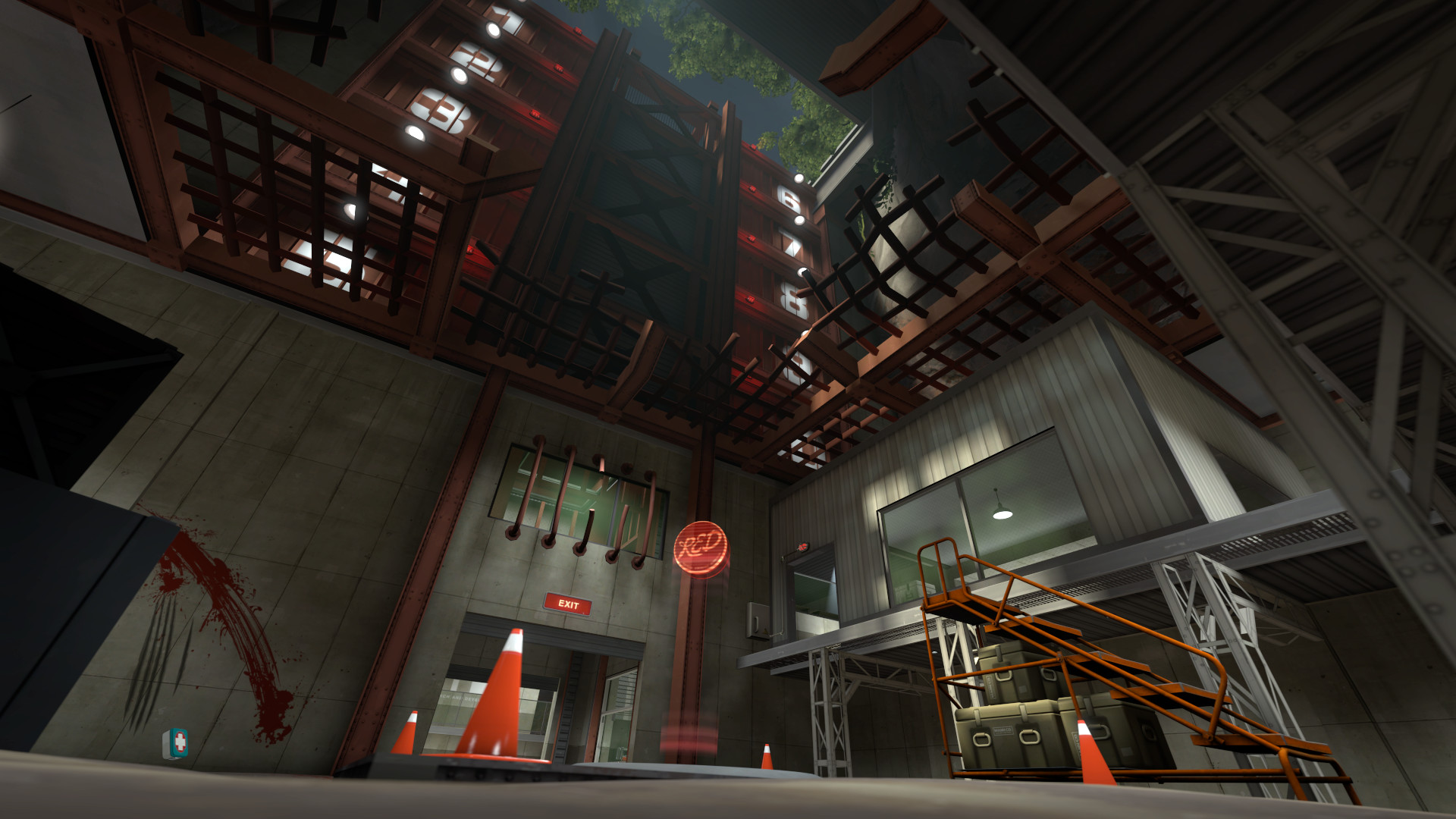
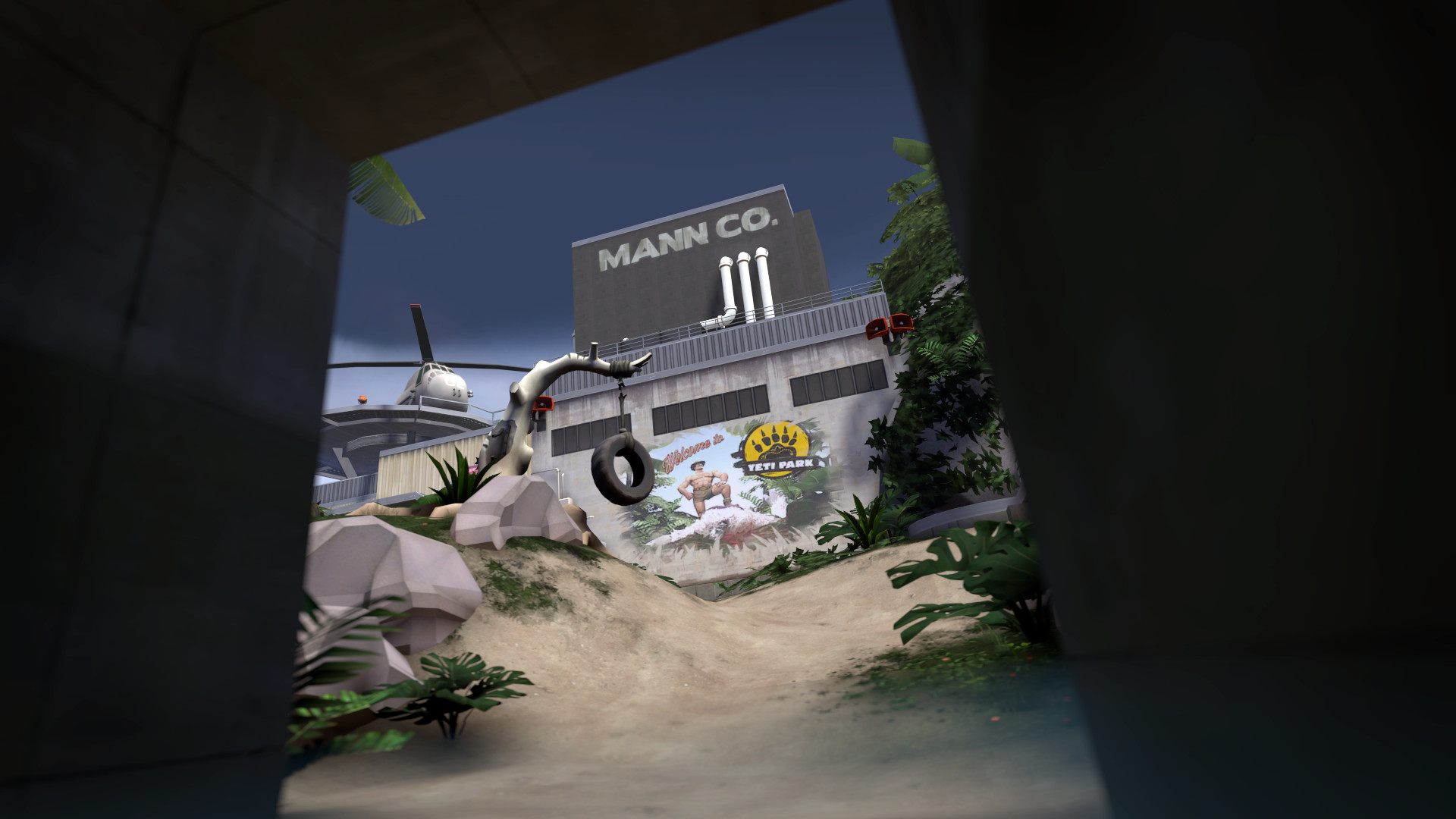
Images are provided by Steam and belong to their publishers.
Way 3: the connect command
Every server has an address in the form IP:port, such as a number with a port like 27015. Dedicated TF2 servers usually use ports around 27015, according to the wiki. To use the address:
- Turn on the developer console in Options, Keyboard, Advanced, then press the tilde key (the one under Esc). The wiki says the console is off by default. Starting TF2 with the -console launch option also opens it.
- Type connect, a space, then the address, and press Enter.
- If the server has a password, type password, a space and the password first.
- To leave, type disconnect. To try again after a failed join, type retry.
Why you cannot find or join a server
| Problem | What to try |
|---|---|
| List is empty or stuck loading | Press Quick refresh, switch between tabs, and wait a few minutes. Players report Steam outages and too much refreshing as causes. |
| Still empty | Restart Steam. Some players add the -tcp parameter to the Steam shortcut, which helped some people but is not guaranteed. Check router flood protection. |
| Missing map, disconnecting | Delete the named map from the tf/download/maps folder (Steam, Manage, Browse local files) and rejoin so it downloads again. |
| Cannot join a friend | A February 18, 2025 patch fixed Steam invites to community servers. Update the game and try again. |
| Server full | Use auto-retry or pick another server with the same mode. |
| Kicked by custom files | Some servers require unmodified files. Remove custom skins or sounds from tf/custom. |
Picking a good server
Look for a ping you can live with, a healthy player count and a clear rule set in the name or tags. A server that shows 20 of 32 players is usually a better pick than one with two. Read the rules in chat when you join and respect admins. Most servers allow you to mute players, and you can leave at any time.
Mode-specific help: our community modes guide explains Saxton Hale, Dodgeball, MGE, surf and Jailbreak, and the Mann vs. Machine guide covers MvM.
Parents note
The ESRB rates TF2 M for Mature 17+ for blood and gore and intense violence, and online interactions are not rated. Community servers have their own moderation, and some modes include text chat jokes or voice chat. Use Steam privacy settings, mute and block tools, and avoid trading outside Steam. Do not use any site that mixes items with gambling.
Latest Team Fortress 2 news
See all → 2026-10-12SteamTeam Fortress 2 Update Released
An update to Team Fortress 2 has been released. The update will be applied automatically when you restart Team Fortress 2. The major changes include: Added 'No Grenades' style for the General's…
2026-10-07SteamOperation Mooncrash War Paint Contest Results(Image credit: Mac) The Operation Mooncrash War Paint Contest results are in! After being rated based on the three criteria of Theme Adherence/Concept, Execution, and Personal Preference, the grand…
2026-10-01SteamScream Fortress XVIII has arrived!An update to Team Fortress 2 has been released. The update will be applied automatically when you restart Team Fortress 2. The major changes include: Scream Fortress XVIII has arrived! Featuring 5…
Common mistakes
- Trying to join before pressing refresh.
- Joining a mode you do not understand and being kicked for rules. Read the tags first.
- Using the wrong port in the connect command.
- Installing unknown plugins or files from servers. Servers cannot ask for more than their map and basic files.
Live now: Team Fortress 2
See all → LIVE
Twitch
21
😼 TF2 CASUAL 😼 TALKING TO CHAT 😼 COME WATCH! 😼
pragakiten
LIVE
Twitch
21
😼 TF2 CASUAL 😼 TALKING TO CHAT 😼 COME WATCH! 😼
pragakiten
 LIVE
Twitch
11
tresh offi maikol taisen vs usyk povetkin klitchko russkiy vityaz. хабаровск мусорка $ gowno
discoboy22ru
LIVE
Twitch
11
tresh offi maikol taisen vs usyk povetkin klitchko russkiy vityaz. хабаровск мусорка $ gowno
discoboy22ru
 LIVE
Twitch
10
asedfjsdfsdfdfsgjå
KyyneIfi
LIVE
Twitch
10
asedfjsdfsdfdfsgjå
KyyneIfi
 LIVE
Twitch
10
Проходим карты сообщества | Играйте со мной | Поддержите монетой (скрим донат) |Заходите в Discord
ONYX____97ru
LIVE
Twitch
10
Проходим карты сообщества | Играйте со мной | Поддержите монетой (скрим донат) |Заходите в Discord
ONYX____97ruNext steps
Save two favorite servers, learn their rules and play at the same time of day to meet regulars. Read more on the TF2 hub and check your PC with Can I run it.
